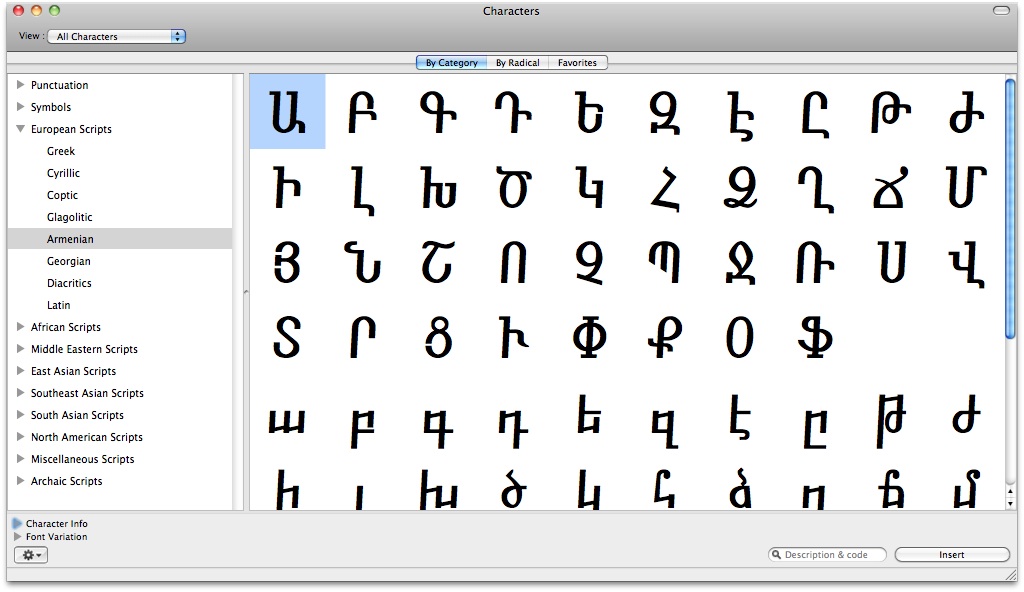
The Character Viewer in Mac OS X is an amusement park for language lovers—Greek, Cyrillic, Armenian, Lao, Archaic scripts… the list goes on. When I first saw it, I really wanted to meet the guy at Apple who created it.
It turns out that it’s not one person—it’s an international committee called the Unicode Consortium, a sort of United Nations for every alphabet in the world (technically, Unicode covers more than just alphabets, since those are just a subset of written languages). I imagine Unicode meetings are an entertaining hybrid of linguistic esoterica and painful bureaucracy. Here’s a fun example from a public review session.
The UTC is seeking evidence and further corroboration of the correct glyph for U+0D66 MALAYALAM DIGIT ZERO, because some sources currently available to the committee are inconsistent in the glyph shown for zero.
Other great things about Unicode: I always thought this / was called a slash, but according to Unicode, it’s called SOLIDUS. Cool. And then there’s the really advanced ones, like:
- GREEK SMALL LETTER ETA WITH PERISPOMENI AND YPOGEGRAMMENI
- FUNERAL URN
- INVERTED INTERROBANG
Symbols are just the tip of the iceberg. Unicode also handles writing direction (left-to-right versus right-to-left, and vertical versus horizontal), mathematical notation, Braille, and even Egyptian hieroglyphics. Consider accent marks: should é be encoded as one symbol (é) or two (e plus ´)? In this case, the Consortium decided that all three characters should exist. And don’t forget the capital version É.
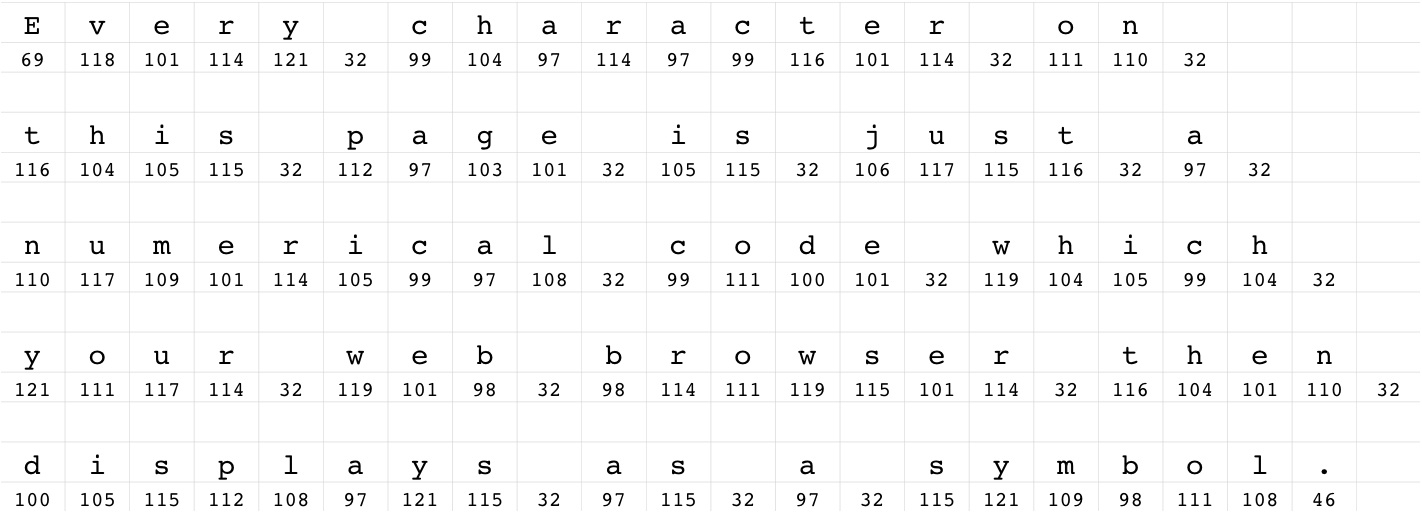
In the ASCII system, which predates Unicode, code 65 represents capital letter A, 66 is B, 67 is C, 90 is Z, 91 represents a left bracket [, and so on. There are codes for everything, even space (32) and carriage return (13). The extended ASCII system has 256 codes available for unique characters.

As computers proliferated, people developed other encodings using the same 256 slots, such as Cyrillic, Thai, Arabic, and Central European. In order to properly display characters in a text file, a computer needs to know what encoding is used, otherwise the result will be gibberish. Unicode solves this problem by extending the 256 code limit to over one million (though many of those slots are still empty). But lots of text files were created before Unicode was established—lots of Tibetan text files, for example— which brings us back to Dharamshala and the problem at hand.
We’re going through all the Excel spreadsheets in the Archive and trying to import them into a single database. Here is a description of a tape stored in one file—it was written using the TCRC Tibetan font, which is not a Unicode font.
&GôP-Å-¤VôG-mÅ- St.Joseph college ÇÀôz-yâG-n¤Å-¾-GmP-zºÛ-z;º-ÇÀôz
As you can see, without the font, it looks meaningless, except for the tiny bit of English in the middle. All of the Tibetan is there, but the computer only shows it when the right font installed. Otherwise, it’s a jumble of European text. There isn’t much information online about dealing with Tibetan, but being in Dharamshala helps, since there’s a lot of local knowledge. After a few phone calls, we were up and running with UDP, a Windows application capable of translating TCRC text files into Unicode. Here’s that same text after going through UDP:
ྋགོང་ས་མཆོག་ནས་ ྔྤ་གྣཔྲྟསྣྲད ཏྼྣརྡརྡྟཐྲྟ སློབ་ཕྲུག་རྣམས་ལ་གནང་བའི་བཀའ་སློབ
Much better, except for the “St.Joseph college” part, which UDP eagerly converted into Tibetan characters along with everything else. This is the problem with pre-Unicode systems: there’s no way for the computer to distinguish between characters of different scripts. If the letters are only Tibetan, fine. Or only English. But both is impossible.
Nevertheless, UDP converted thousands of lines of TCRC Tibetan into Unicode, saving us days of retyping. For the first time since starting this database project, I felt like we were getting somewhere. That’s when we hit our next encoding snag.
A very talented monk named Lobsang Monlam has developed an elegant series of Tibetan fonts named Monlam. The name isn’t as self-aggrandizing as it sounds—there are international politics surrounding font naming, particularly in regards to Tibet and China. A font with “Tibetan” in the name would be preferable, but it could be problematic in the PRC.
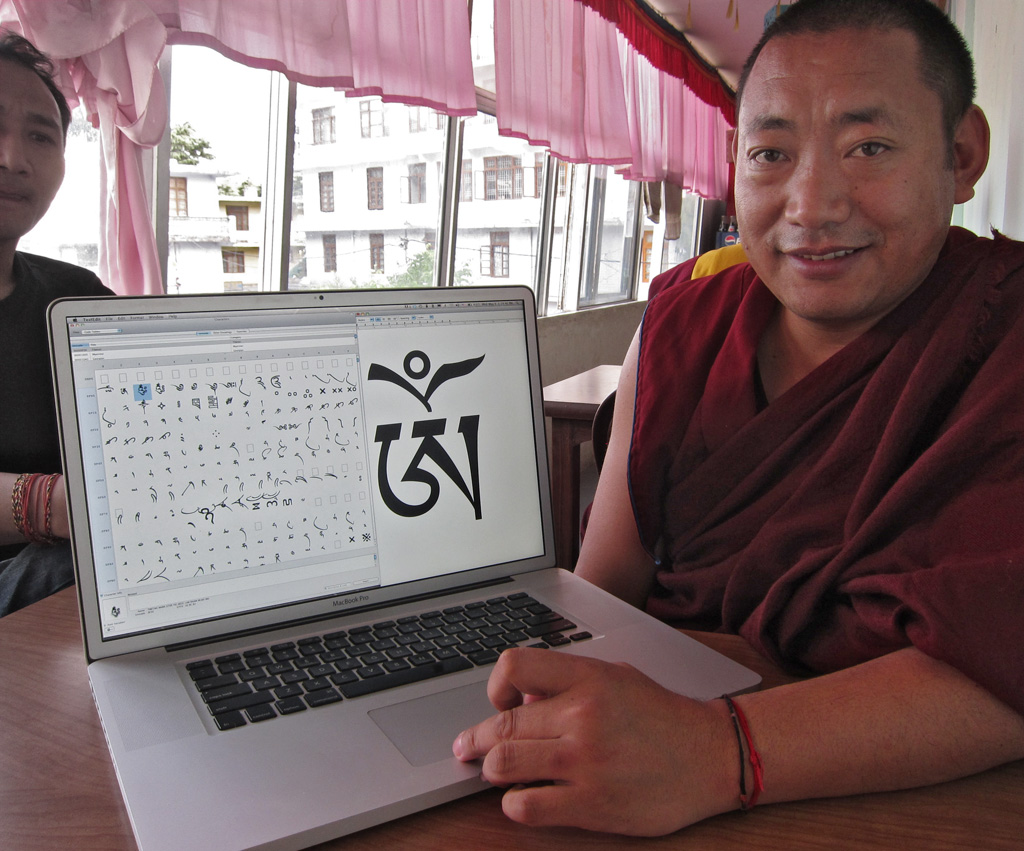
Lobsang [Monlam] drew and encoded all of the characters himself. And I mean all of the characters. Here’s the thing with Tibetan: it is full of ligatures, where two or more letters are joined in a single glyph. In English, there are only a few examples, like when f is followed by i (fi) or e after a (æ). These typographic conventions can be ignored in English and the meaning is still clear, but Tibetan characters form vertical stacks that are essential to the written language.
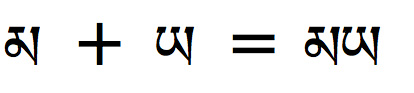
Here is MA followed by YA:
མཡ
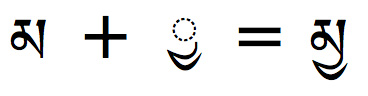
and here is a “ya-ta” ligature, where YA is joined beneath MA, forming a stack:
མྱ
which, incidentally, is pronounced NYA, even though the obvious sound would be MYA. (This shows how tough it is to learn written Tibetan. We have similar issues in English—how can we justify the discrepancy between the spelling and pronunciation of words like “enough?” Both Sangye and Chemey have pointed out that in Ladakh, people pronounce letters which remain silent in Tibetan—a kind of “what you see is what you get” approach to the language, as opposed to reforming the spelling itself. All this makes me glad we’re not here working on Tibetan text-to-speech software.)
Anyway, here are some of examples of really tall Tibetan characters stacks, used mostly in Buddhist texts. Lobsang Monlam had to create every one of these.

A lot of pieces have to be in place to enter and display a Tibetan stack into a computer, even a simple one like YA + subjoined MA. For starters, you should be using Unicode. Then, the software you’re using needs to be 1) Unicode aware, 2) capable of recognizing these two characters as a stack, and 3) properly displaying that stack.
To type in Unicode, you need a keyboard layout which maps the Latin alphabet keys to Tibetan characters. Lobsang Monlam has provided a layout we’re using at the Archive. When you press K, you get KA. When you press T, you get TA. So, if you know English, you can get by typing Tibetan phonetically. It’s not perfect, but even I was able to learn it pretty quickly with just a rudimentary understanding of Tibetan.
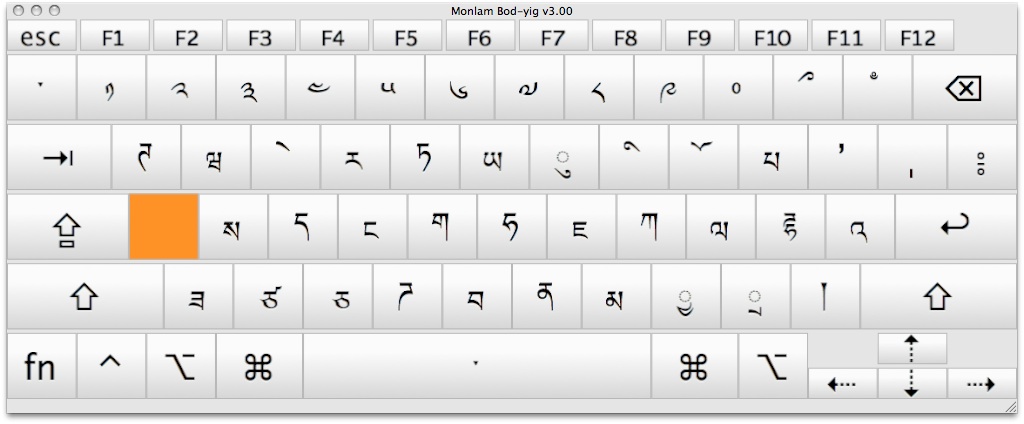
After you press a key, it’s up to the software to display the right thing. If you type MA (Unicode 3928) followed by YA (3937), you should see the two characters side by side, as simple as A followed by B.
But if you type MA (3928) followed by SUBJOINED YA (4017), then the software needs to recognize this as a ligature (two characters drawn together as one). Instead of literally drawing those two characters on top of each other, which would likely look bad (just like overlaying a and e will never give you a clean looking æ), the software next consults with the font’s internal table of ligatures. Basically, the font says “If MA is followed by SUBJOINED YA, use this third glyph where the two characters are drawn together.” Which looks like this:
So, in the case of Tibetan, only the root and superscribed characters have unique encodings. All the combinations must be handled by the font. To complicate matters, Windows and Mac OS X have historically used two different font rendering technologies—OpenType and Apple Advanced Typography, respectively, which means Tibetan font developers had to choose their platform or duplicate efforts. Apple includes a lot more OpenType support these days, which makes things easier on font developers, but now software developers (Adobe, FileMaker, etc.) have to rewrite their code for Mac OS X to take advantage of that support. All of this takes time, and thus consistent Tibetan support is still limping along.
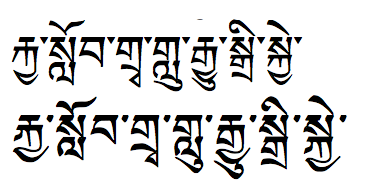
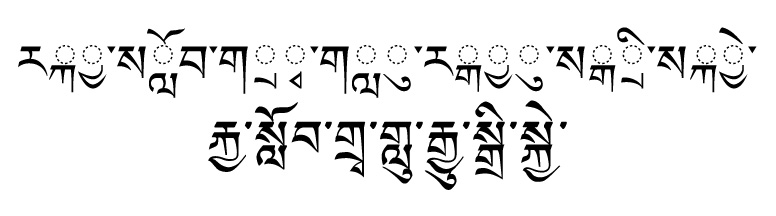
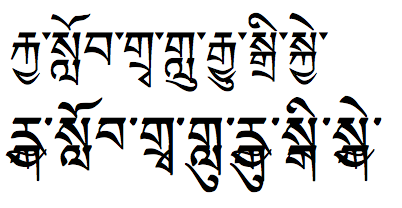
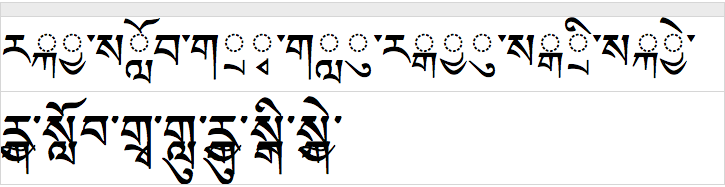
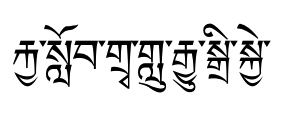
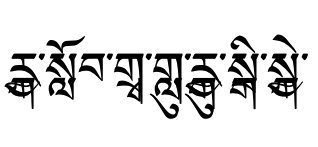
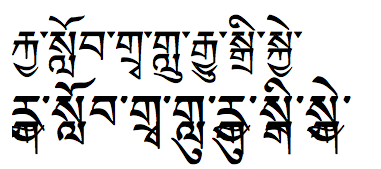
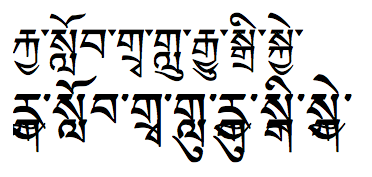
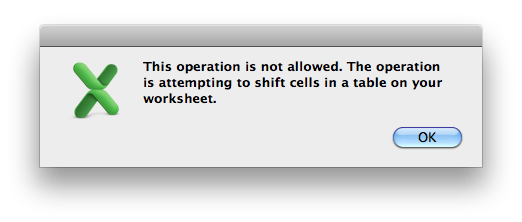
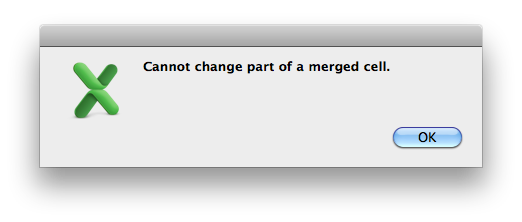
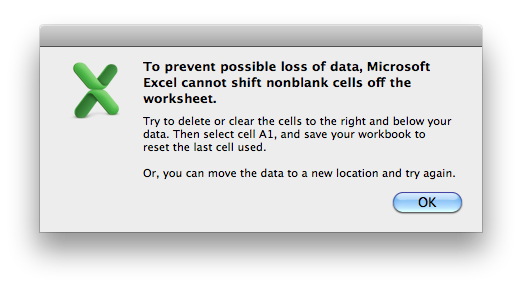
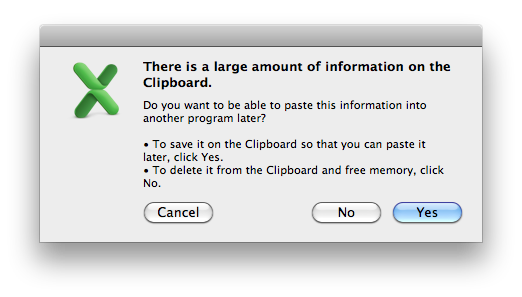
Microsoft Word and Excel 2011, on Mac OS X, have issues similar to iWork, but I didn’t take screenshots. I’m going to digress here for a moment to talk about my disappointment with Office 2011. I have to say that it is basically a disaster. Routine functions like adding a new column can take half a minute or longer—in Numbers it’s almost instantaneous. And the byzantine ways that Excel deals with copying and moving groups of cells is unforgivingly bad. Observe my epic journey attempting to change the order of two columns. Is it possible to sue an application developer for malpractice?
My solution, as tedious as it sounds, has been to import Excel files into Numbers, work with them there, and then export them back into Excel if I have to. Now, back to the story…
Given the inconsistent support for proper font rendering in these applications, Lobsang Monlam created an alternative. In addition to the Unicode characters and glyphs in his Unicode fonts, he also created pre-combined Tibetan characters and assigned them to existing, non-Tibetan codes. This is very problematic in terms of Unicode standards (it basically creates the same issue I describe earlier, where characters only appear correctly when you have a specific font installed). According to Unicode, the characters you’re actually typing are Thai or Buginese letters (I didn’t even know what Buginese was when I started all this), but they appear Tibetan when a Monlam font is installed. This method allows people to type good-looking Tibetan in older software packages but the codes don’t actually represent Tibetan.
We have an enormous text document which carefully logs about 500 or so DV tapes, and it’s all written in non-Unicode Tibetan. UDP can’t convert this encoding to Tibetan, so we’ll have to go character by character, trying to automate the mapping of non-Unicode to Unicode wherever we can.
Where does this leave us? FileMaker Pro is our only practical database option, but we can’t type Tibetan (a font expert at Apple who has been invaluable throughout this process mentions that a Tibetan Wylie keyboard might work, and he’s right, but the folks here aren’t familiar with this method). It seemed the sun was setting
on our big database plans, when Phuntsok interrupted to show me his Facebook page on his iPhone. Some of the posts were written in Tibetan. I asked him how he made the posts and he said “It’s easy—you type Tibetan on the phone.” With a single tap, he can switch the Latin keyboard into a Tibetan one. And unlike a physical keyboard where you have to memorize the mapping (K=KA, S=SA, etc.), this virtual keyboard shows the characters directly on the keys.
We installed FileMaker’s iOS app called FileMaker Go on Passang’s iPad, connected it to our Mac-based FileMaker Pro database, and suddenly we had it: typing Tibetan directly into FileMaker—nearly impossible on the Mac but trivial on the iPad. I have yet to own an iOS device, but I have a lot of respect for the attention to detail that goes into them. For typing Tibetan, this is a pretty big deal, and the Archive folks seem to like it more than using the Mac keyboard.